Radio panel
Available now.
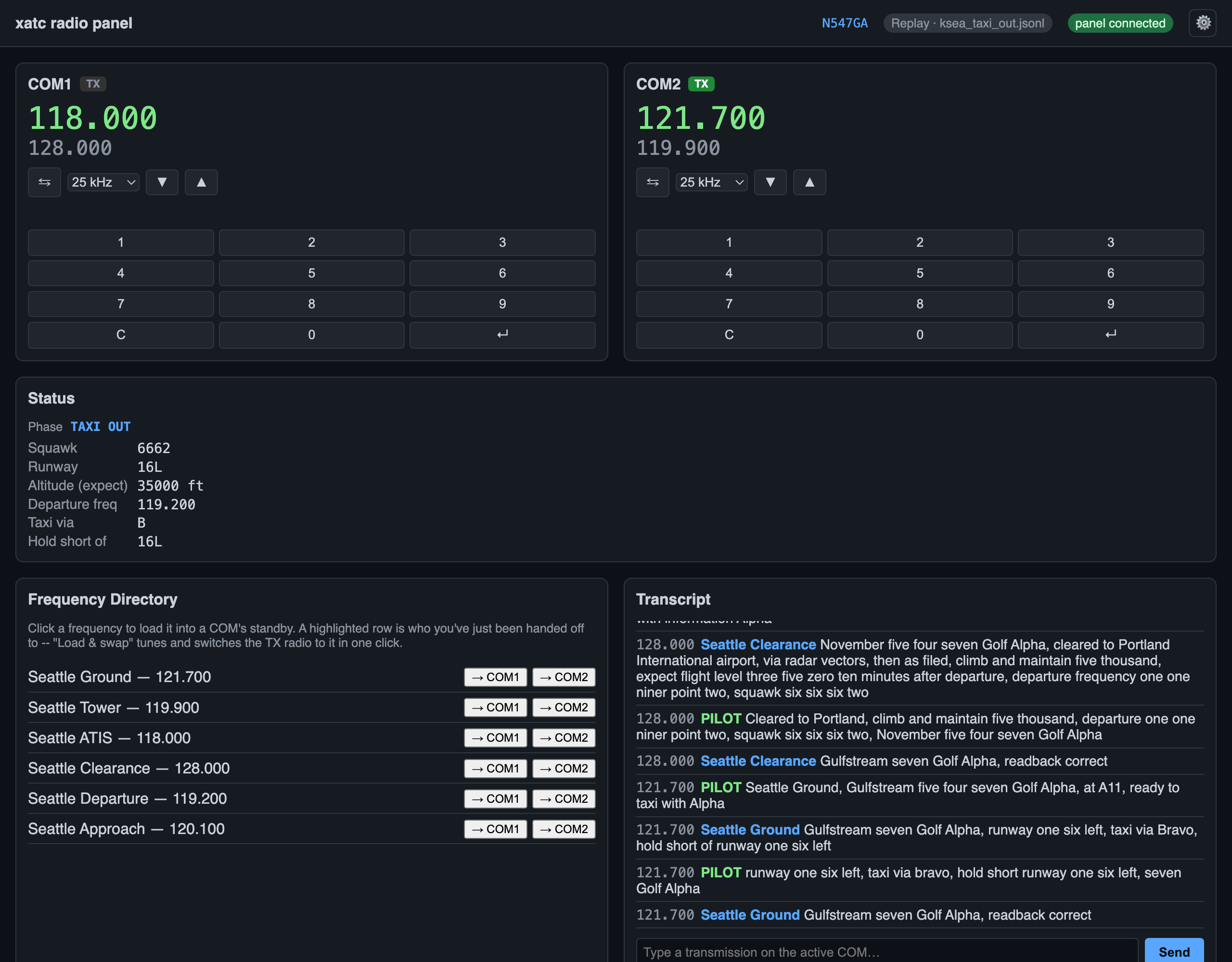
The radio panel after a clearance and taxi exchange at KSEA: COM2 is transmitting on Seattle Ground, the Status section shows what's been issued (squawk, runway 16L, taxi via B, hold short of 16L), and the transcript shows each pilot call and ATC reply, including the readback checks.
What it does
A local web app (FastAPI + one WebSocket) serves a single, dependency-free HTML/JS page that behaves like a real COM radio stack, open in a browser on any device on your network:
- COM1 and COM2 -- active and standby frequencies, a flip-flop button, a tuning knob (drag, scroll, or a numeric keypad, 25 kHz or 8.33 kHz steps), and a TX light that's green when that radio is selected to transmit and red once a push-to-talk mic stream is actually confirmed open (not just "the button is pressed"). Either COM can be hidden from the panel (Settings → Display) for flying with the radios tuned entirely from the cockpit -- display only, X-Plane's own radios and what xatc hears/transmits on are unaffected, and hiding a radio doesn't hide the frequency directory's own "→ COM1"/"→ COM2" and "Load & swap" buttons, since those still tune the aircraft's actual radios either way.
- A narrow-width top bar -- below 700 px the title hides, the callsign leads, spacing tightens, and the status pills ellipsize instead of wrapping, so the bar still fits on one row down to 600 px wide.
- Two-way sync with X-Plane. Tuning the panel writes the COM frequency to the sim; turning the knobs in the cockpit updates the panel. Either one can drive.
- Status section -- the current flight phase and whatever's actually been issued on the current clearance: squawk, runway, assigned or expected altitude, departure frequency, taxi route, and hold-shorts. Only fields that are actually set show up, so it starts almost empty on the ramp and fills in as ATC issues things.
- Frequency directory -- nearby controller positions, following the aircraft (F14): whoever's working you now leads, with its own highlight; whoever you're handed off to next is highlighted too, with a one-click "Load & swap" that tunes and switches the TX radio to it directly, instead of loading to standby and flip-flopping separately. Click any other row to load it into a COM's standby. See Directory ordering for exactly what shows up and when.
- Route map card, once airborne on an IFR route -- the filed fixes with the one you're tracking toward highlighted with its distance, anything already behind you dimmed, and a line from the aircraft to that next fix. See Route tracking for the data behind it.
- Reset flight button -- clears the saved flight state and starts over parked, where the aircraft is, without needing to restart xatc itself.
- Transcript -- every transmission, tagged by frequency and station, plus a type-to-transmit box that's always there alongside voice.
- Push-to-talk -- an on-screen button, or holding Space while the page has focus (ignored while typing in a text field). Always on -- disabled with a plain reason, rather than erroring, whenever voice itself can't start.
- Settings -- a gear icon opens a full Settings page covering everything xatc needs to fly: flight plan, connection, voice, ATC behavior, and advanced overrides. See Settings below.
- Status pills in the top bar, one per thing that can be up or down -- see Status pills below.
- A "Traffic N" chip, next to the status pills, when the live traffic feed actually has something to report -- see Traffic chip below.
Status pills
Three pills in the top bar, each a short label with a color for its state and the actual words in its tooltip (hover or tap it) -- keeping the bar itself short without hiding what's wrong:
- X-Plane -- the sim connection. Shows the X-Plane version once connected (e.g. "X-Plane 12.4.3"), green for connected, red for disconnected (retrying with backoff). Replaying a recording instead of a live connection shows the filename and whether it's still playing or holding at the end, in gray.
- Panel -- your browser's own WebSocket connection to xatc, separate from the sim connection above: green while connected, red while it's reconnecting.
- AWS -- whether voice's AWS credentials actually work right now (checked at startup, every 60 seconds, after any AWS-related Settings save, and on demand); green when signed in, amber once the session has under 15 minutes left or something needs attention, red when it can't reach AWS at all. Click a non-green pill to sign in right there in a popover, no Settings needed; click a green one to open Settings → Voice's AWS account block instead. See AWS sign-in and status.
Traffic chip
Unlike the status pills above, this one isn't clickable and has no color for state -- it's just shown or hidden, next to them in the header. "Traffic N" shows the live traffic feed's current target count, with "N nearby, M airborne" in its tooltip. Hidden entirely -- not shown as "Traffic 0" -- whenever there's nothing to report: no feed at all, a stale one, or a genuine clear sky all look the same from here, on purpose, since the panel can't actually tell them apart.
Type-to-transmit
Not a separate mode to switch into -- the transcript's own text box works all the time, alongside voice, not instead of it. Type a transmission and it's handled exactly like a spoken one. This is what keeps a flight going with no AWS account at all, or whenever voice can't start (bad credentials, no mic), and it's also how the project develops and tests without needing a live sim.
Two-way COM sync
All frequency changes go through one interface the engine's sim bridge implements, whether that's a live X-Plane Web API connection or a recorded/replayed flight -- the panel never talks to a specific bridge implementation directly, so it behaves identically either way.
Settings
For every setting's default, flag and when it takes effect, see the Settings reference.
Everything xatc needs to fly is configured from one place: click the gear icon to open the Settings page (ADR 0007 in the repository), which replaced an earlier one-tab options modal. It's organized into six tabs, each with its own Save button so changing one doesn't touch the others:
| Tab | Covers |
|---|---|
| Flight | Flight plan source, callsign, aircraft type, departure/destination, route, cruise altitude |
| Connection | X-Plane host/port, and an X-Plane installation folder override |
| Display | Show/hide COM1 and COM2, native window vs. browser, always on top |
| Voice | Transcribe vocabulary, radio effect preset, hardware PTT source, and the AWS account block (sign-in and status). Always on -- see Voice for what happens if it can't start |
| ATC | Intent parsing mode, altitude source, conformance strictness, and the 14 CFR 91.117(d) heavy-speed exception |
| Advanced | AWS profile/region, apt.dat/atc.dat overrides, the debrief folder, and the panel's own host/port |
Flight plan: manual or SimBrief. The Flight tab's Manual/SimBrief toggle switches
between typing everything in by hand and pulling a real OFP: enter a SimBrief username
and click Preview to fetch the latest plan without saving anything yet, review
callsign/type/route/cruise in the preview, then click Use this plan to copy it into
the form and save it in one step. Once the flight leaves the ramp (any phase past
PARKED), the whole Flight tab locks with the banner "Flight plan locked after
clearance -- changes here won't take effect this flight."
Learn PTT button. On the Voice tab, pick a push-to-talk source -- X-Plane (the default, works on Windows and macOS), Joystick (Windows only), or Off -- then click Learn PTT button and press a button on your yoke or joystick: xatc listens for 10 seconds and fills in the field that source uses. See Push-to-talk from hardware. It doesn't save automatically -- click Save Voice to keep it.
Microphone. The Voice tab's microphone list (blank means the system default) is a real, live setting -- pick one and Save Voice switches to it immediately, no restart. Refresh rescans the audio devices first, so a headset plugged in after xatc started shows up. Joysticks are listed alongside it too, but only for reference, not a saved setting. See Voice for what happens if the picked device goes away or goes silent mid-flight.
A field set by a command-line flag for this run shows read-only with "Set by command line for this run." underneath -- the flag wins for the run, so there's nothing useful to edit.
Some changes need a restart. X-Plane connection settings, the panel's own host/port, and the AWS profile/region and vocabulary only take effect on the next launch -- saving one of those shows a banner: "↻ Restart xatc to apply: <the changed keys>." Everything else (ATC behavior, the radio effect preset, joystick PTT) applies immediately. Saving anything on the Voice tab, whether or not it needs a restart, also triggers a fresh attempt to start voice if it wasn't already running -- see Voice.
Where it's saved. Settings live in settings.json in your OS's standard config
directory -- %LOCALAPPDATA%\xatc\settings.json on Windows, ~/Library/Application
Support/xatc/settings.json on macOS, ~/.config/xatc/settings.json on Linux. The
Settings page footer shows the exact path in use, with an Open folder link next to
it.
Configuration
Everything above is normally set from the Settings page, not flags -- see Getting Started for the no-argument, settings-driven way to run xatc day to day. Flags remain for development, tests, and one-off overrides:
xatc run --host 0.0.0.0 --port 8000 ...   # bind address/port
xatc panel --replay <file>                # a standalone dev/demo server, loops the replay
Run xatc run --help for the full set of flags (voice, weather fixtures, flight plan,
live vs. replay).
Limitations
- The header shows the aircraft's raw tail number, not the spoken callsign ATC actually uses -- and there's no edit override if it's wrong.
- No audio volume/RX-monitor-toggle controls beyond what half-duplex playback already does (see Voice).
- No post-flight debrief view.